For patients
Guide for patients
You do not need to install an app or sign in. The red boxes and numbers on each screen show where to tap in that step.
01Check in on your phone
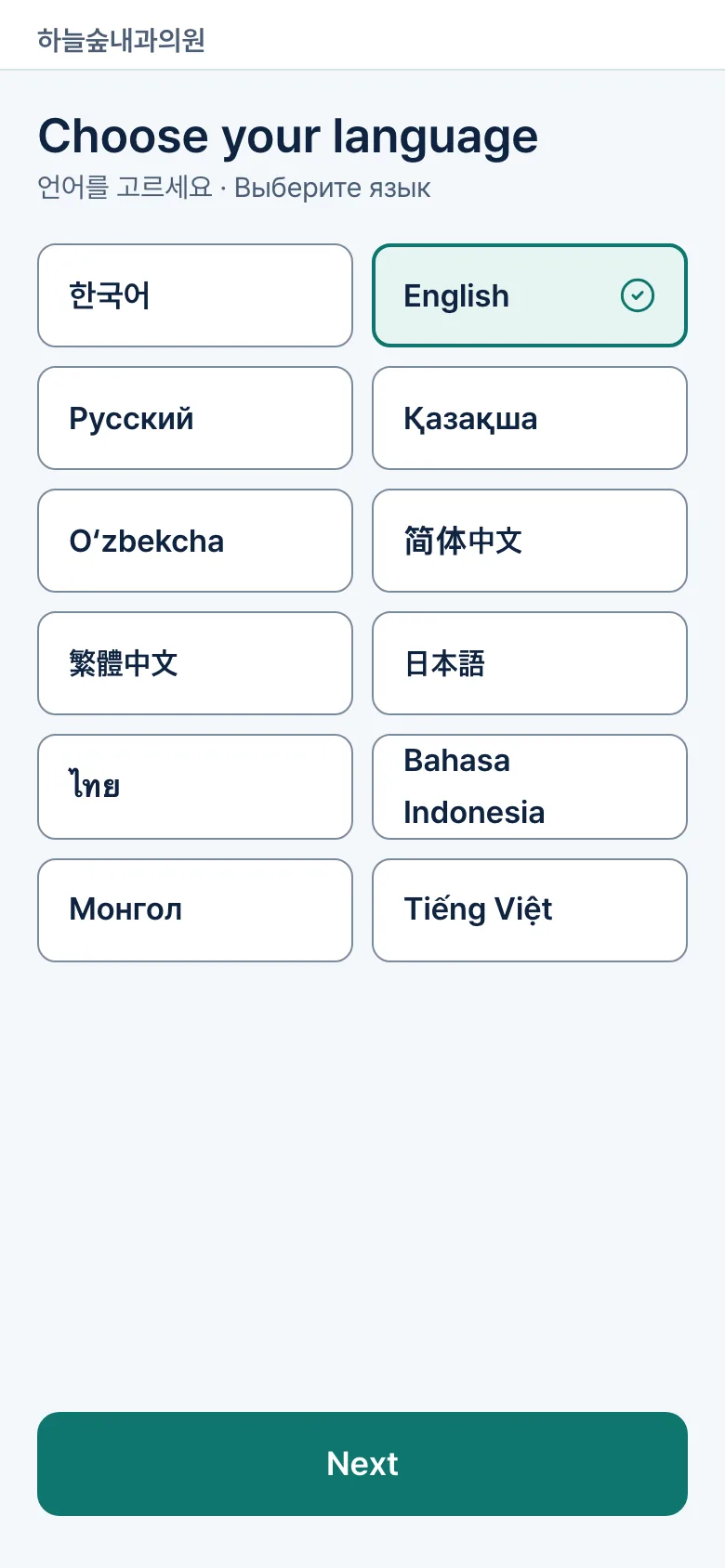
Scan the QR code and choose a language
Scan the QR code at the reception desk with your phone camera, and the check-in page opens. ① Tap the language you want to read, and the page changes to it. ② Tap “Next”.
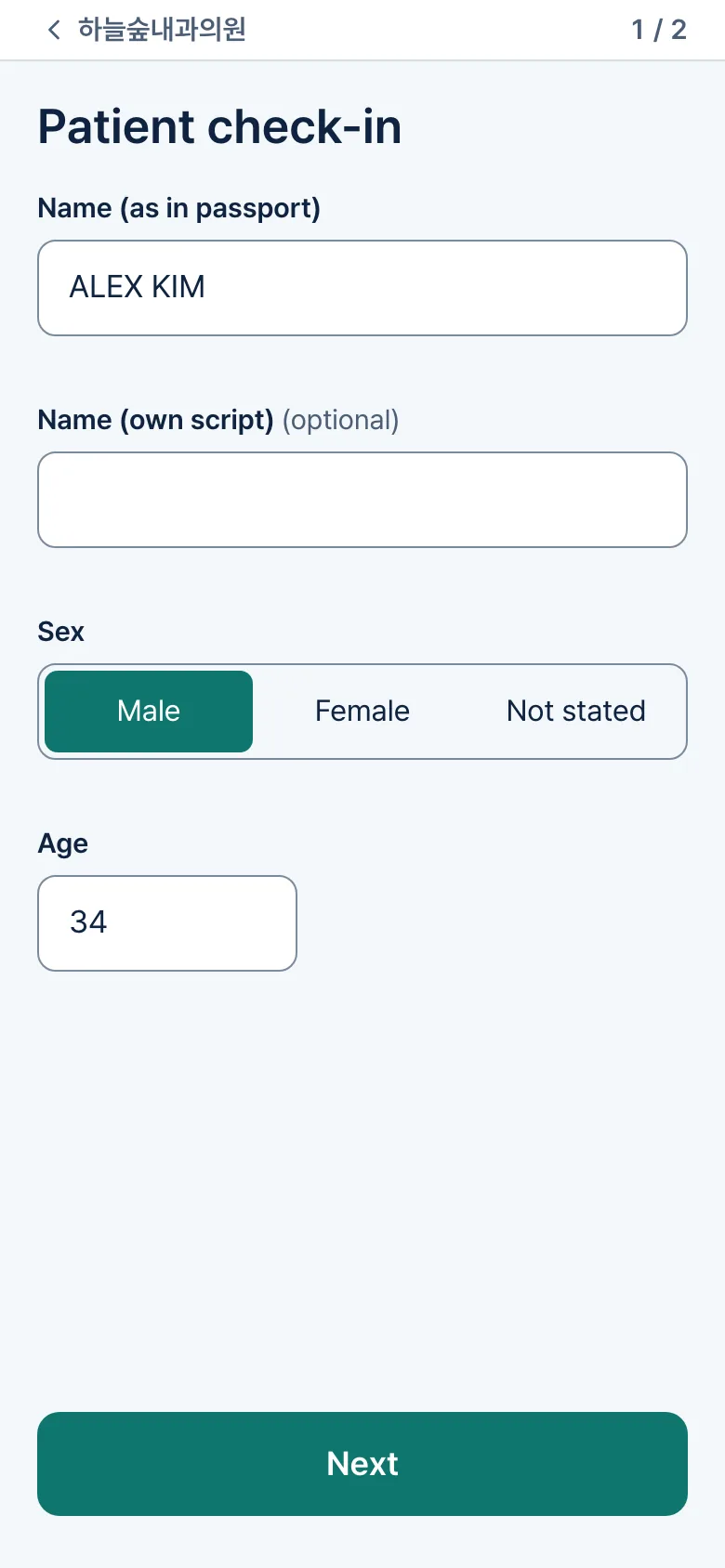
Enter your details
Enter ① your name in Roman letters as in your passport, ② your sex and ③ your age, then tap ④ “Next”. You do not have to enter your name in your own script.
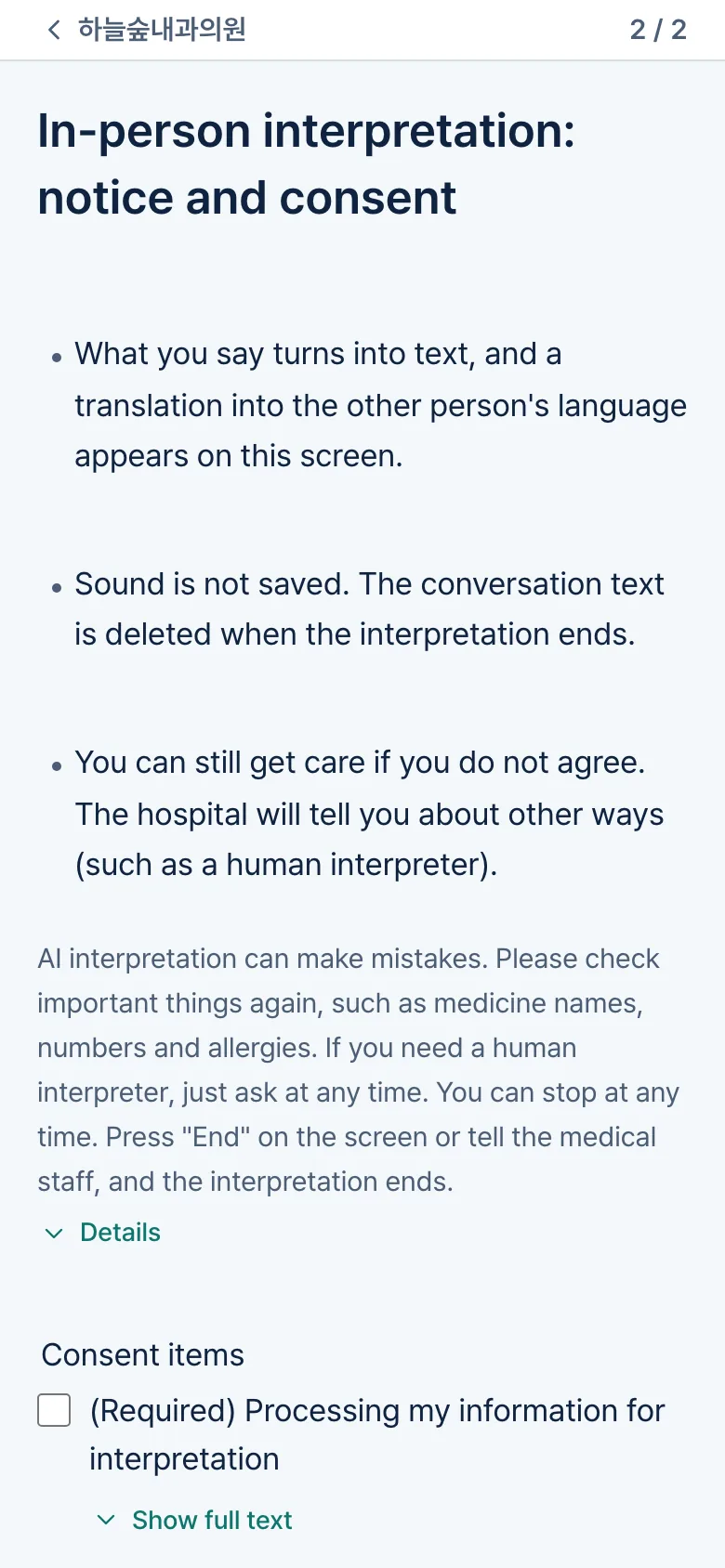
Read the consent
① Read the three-line summary. It says what interpreting does, what is deleted, and that you can get care even if you do not agree. Tap ② “Details” to read more.
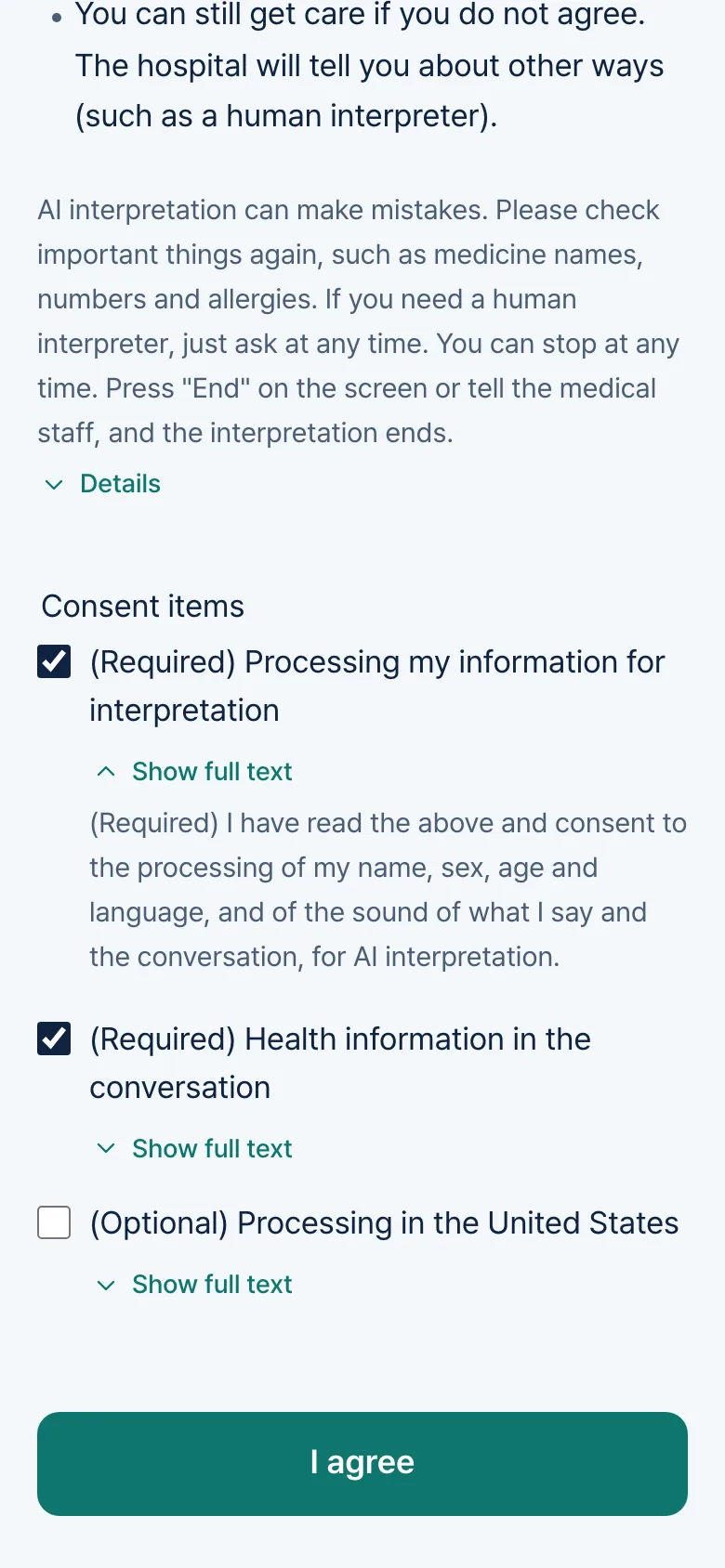
Give consent
Tick the two required items. Tap ① “Show full text” under an item, and ② the full consent sentence opens. When you have read it, tap ③ “I agree”. You do not have to choose the optional item.
Wait
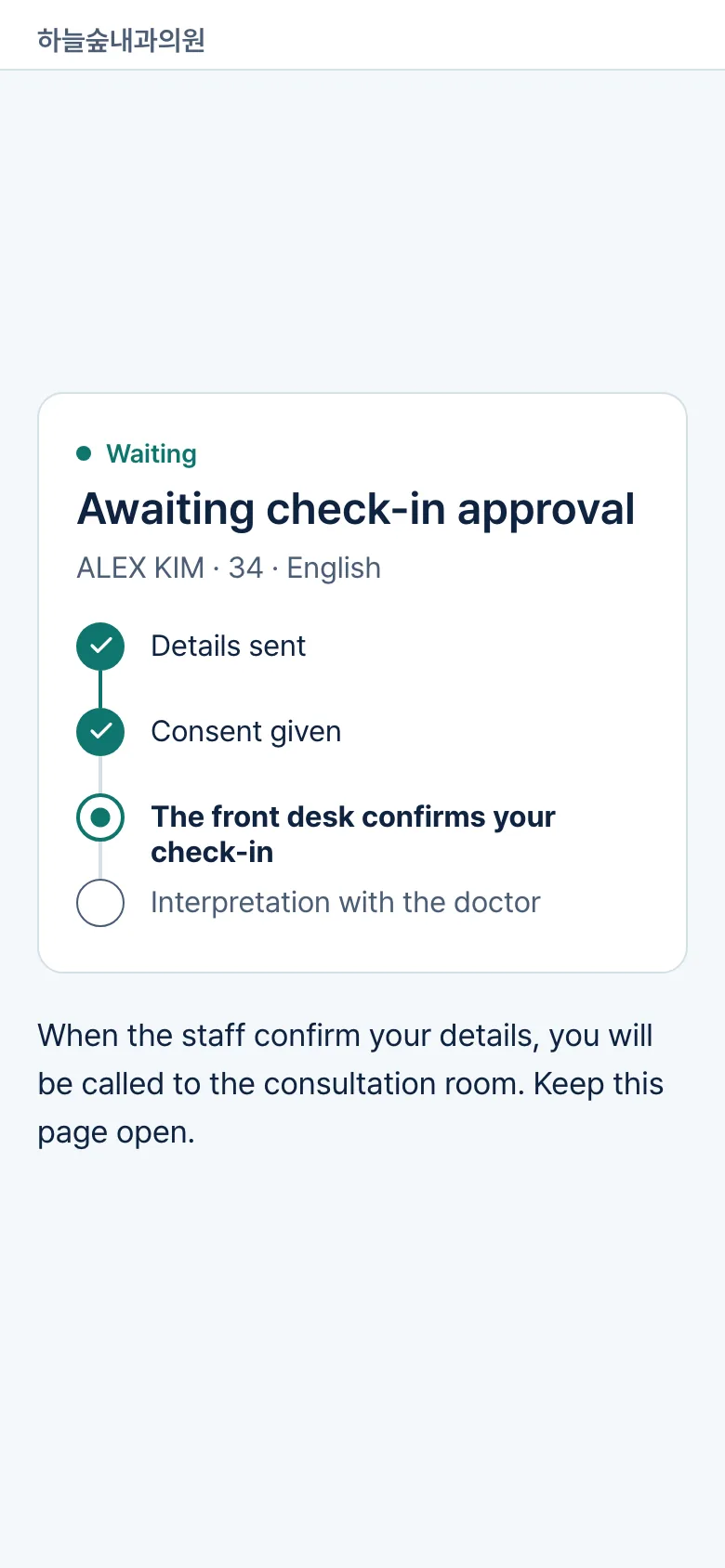
When ① “Awaiting check-in approval” appears, your check-in is complete. ② The progress steps show how far you are. After the hospital checks it, staff will take you to the consultation room. Keep this page open.
02In the consultation room
Speak on your turn and check
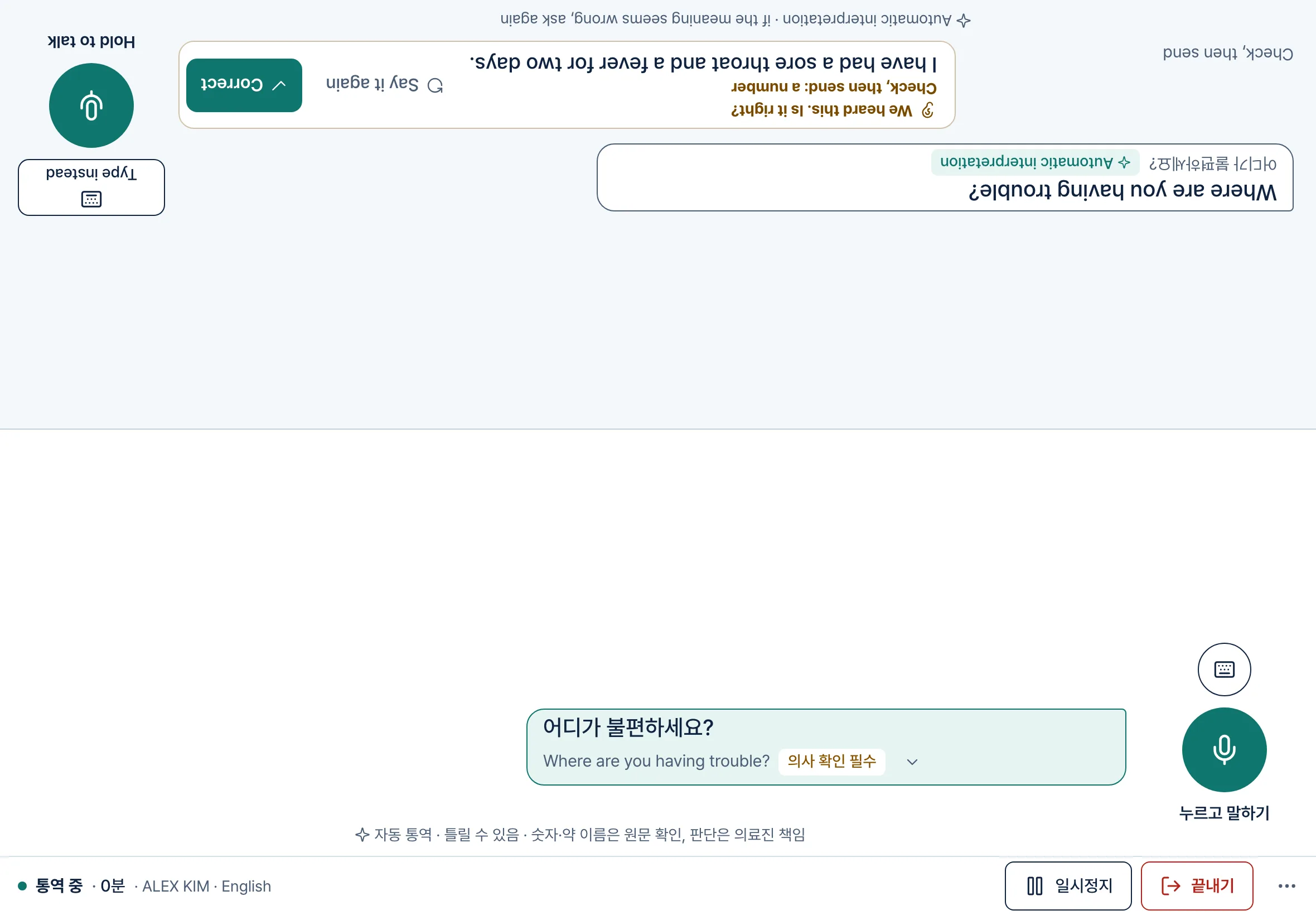
On the room's device, hold “Hold to talk” on the side facing you while you speak, and let go when you finish. For speech with numbers, ① “We heard this. Is it right?” appears. If it is right, tap ② “Correct”. If not, tap ③ “Say it again”.
Type your message
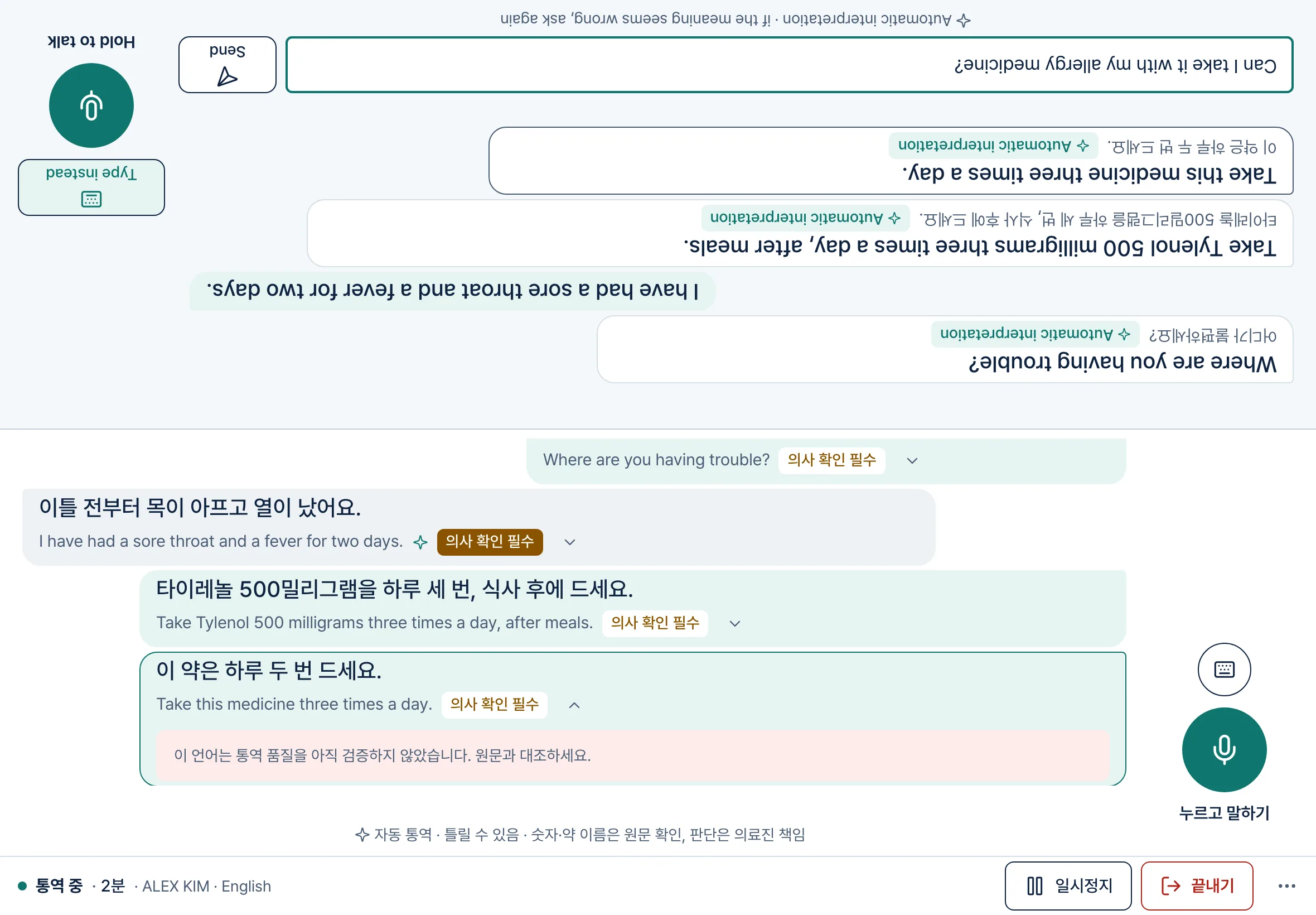
If speaking is hard, tap “Type instead”, write in ① the box, and ② tap send.
When you need a break or help
To take a short break, let go of the talk button and tell the staff. If you need a human interpreter, say so at any time. After the consultation, the hospital's instructions explain how to withdraw consent.
03After the consultation
Read the after-visit instructions
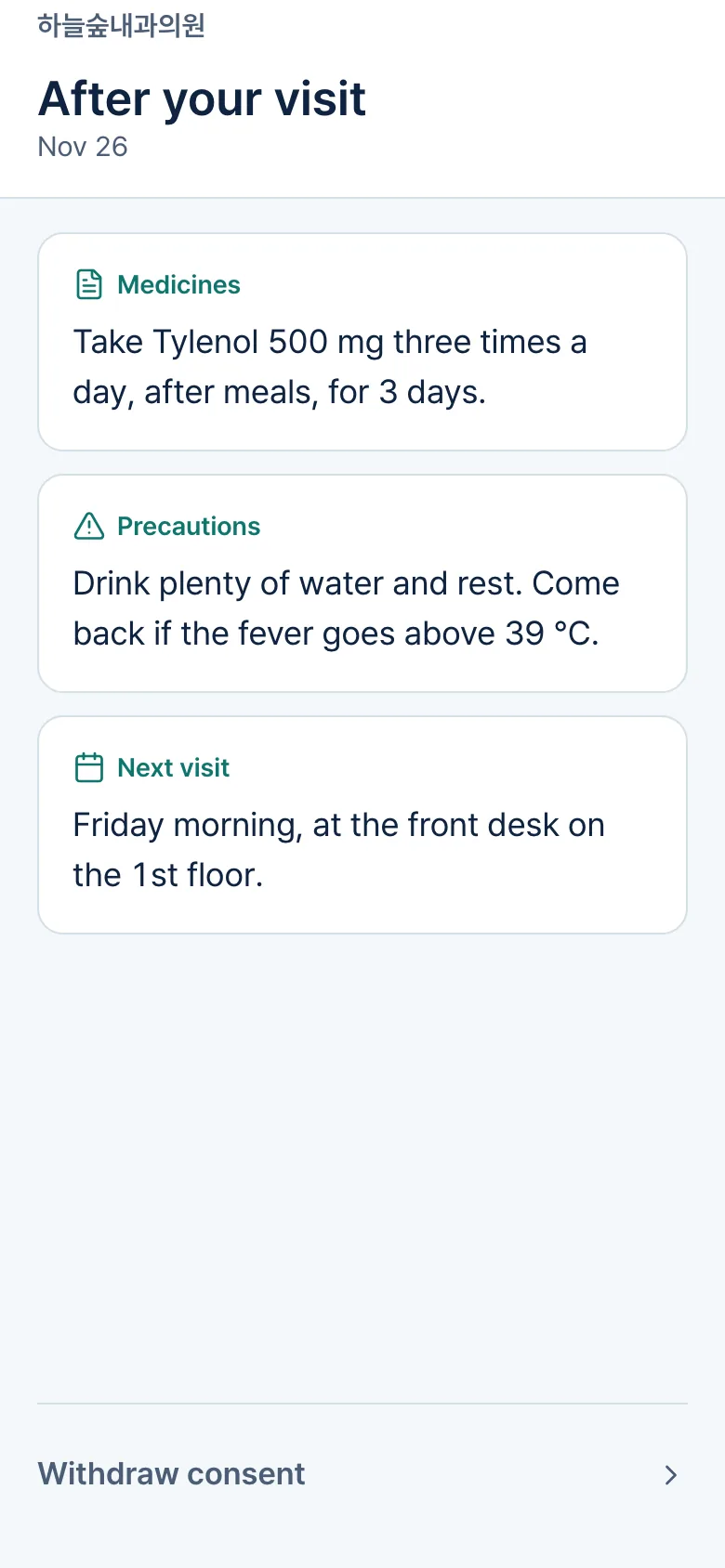
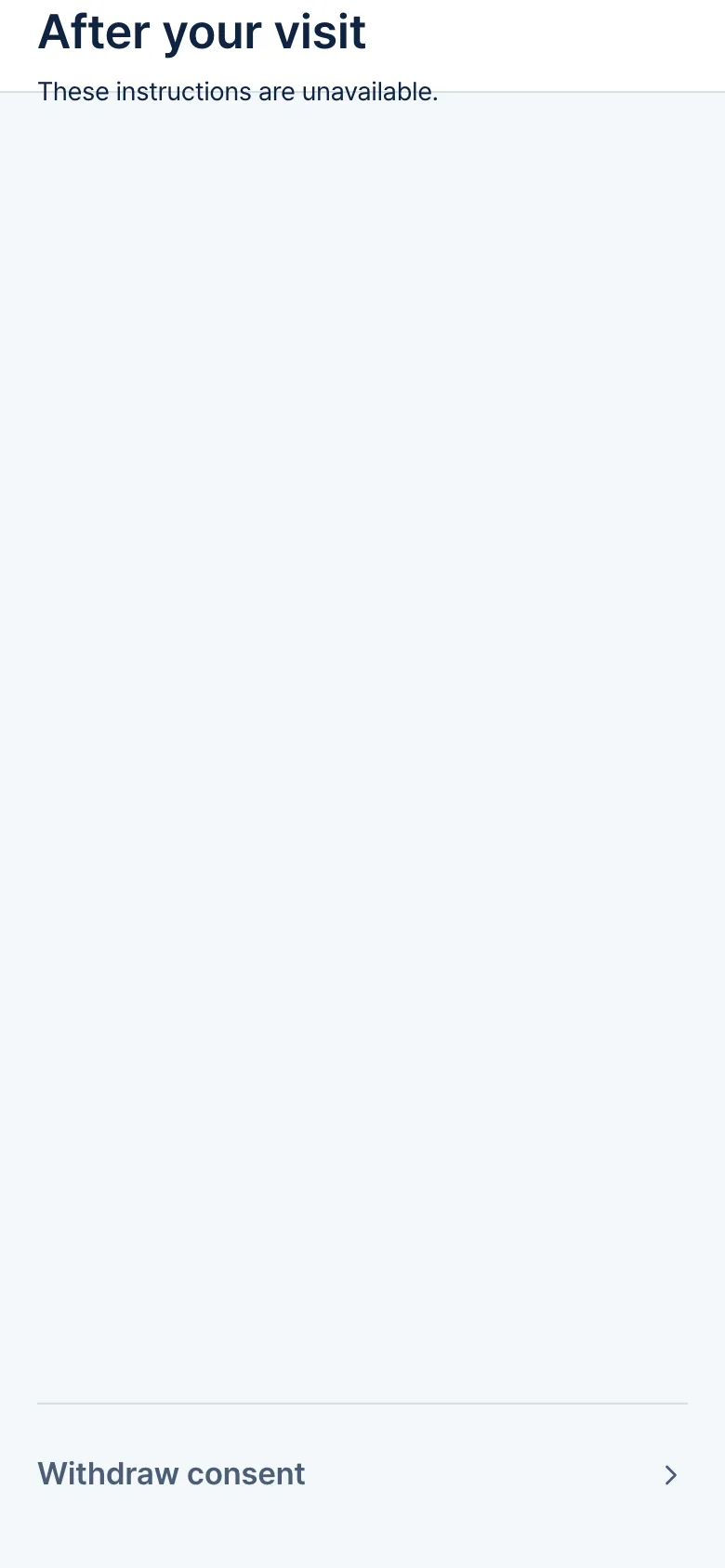
Scan the QR code the doctor shows you, and “After your visit” opens. ① Read the medicines, precautions and next visit. To withdraw consent, tap ② “Withdraw consent”. The content is deleted when you close the page or switch to another app, so read it right there.
Having a problem?
- It says the instructions cannot be opened
- If “These instructions are unavailable.” appears on the after-visit page, the link was cut off or has expired. Ask the staff again.
- The microphone does not work
- Tap “Type instead” to type your message.
- You are not sure it was sent
- Check the last delivered message together with the staff.
Try a demo in your clinic first
Tell us how many consultation rooms you have and which languages your patients mostly speak. We will arrange a demo and a quote.