

01

One person speaks at a time

Hold the talk button while you speak. When you let go, your turn ends. The two voices never overlap, so it is always clear who said what.

02

Check what was heard before sending

When “Here's what I heard. Is that right?” appears, compare the text with what you said. If it matches, tap “Correct”. If not, tap “Say it again”.

The clinician's screen after hearing a sentence with a medicine name and numbers. The “맞아요” (Correct) and “다시 말하기” (Say it again) buttons are shown.
A sentence with a medicine name or numbers is checked on the clinician's screen first.
03

Risky words are flagged

Numbers, drug names, negations such as “no”, and left and right are compared with the original. The clinician checks flagged sentences before sending. Automatic interpreting supports the clinician's judgment. It does not replace diagnosis.

04

Each person reads in their own language

The translation appears on the listener's side, in the listener's language. Buttons on the patient screen are in the patient's language too.

The patient's screen for checking what was heard. The Correct and Say it again buttons are shown.
What was heard and the check buttons appear in English on the patient's screen.
05

Type when the microphone cannot be used

If there is no microphone permission or the room is noisy, type instead. Read the sentence before you send it.

06

Take a break, then finish

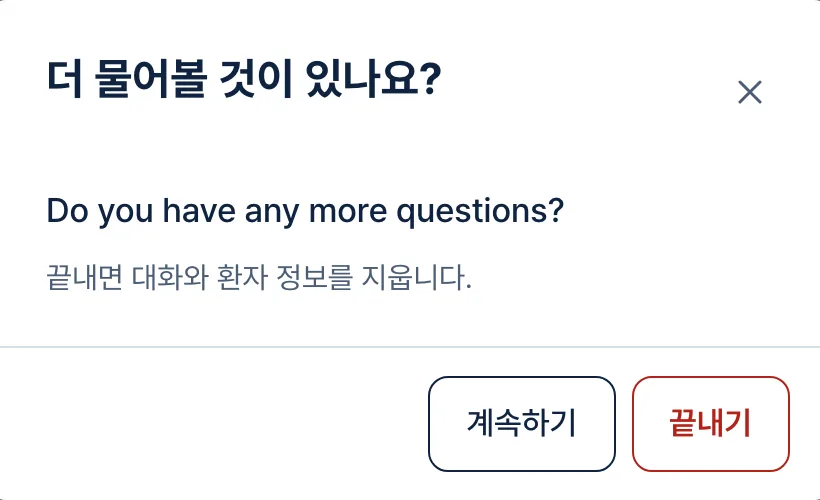
Use “Pause” to stop for a moment and “Resume” to continue. When you tap “End”, it asks once, “Anything else to ask?”, and then finishes.

The end confirmation window “더 물어볼 것이 있나요?” (Anything else to ask?), with the “계속하기” (Continue) and “끝내기” (End) buttons.
Before interpreting ends, this window checks whether there is anything else to ask the patient.

Setups for the consultation room

Start with one device. If many people come with the patient, add a device. Only one device in each room plays sound.

Top view of a consultation room. One tablet sits in the middle of the desk. The clinician sits on one side, and the patient and guardian sit across.
One device

One tablet in the middle

Place one tablet or the doctor's phone between the clinician and the patient. The screen is split in two: the patient's language on top, Korean below.

  • Up to 3 people
  • 2 screen languages (Korean and the patient's language)
  • No extra equipment to install

Works well for Clinics with one consultation room, ward rounds

Top view of a consultation room. The guardian scans the QR code on the tablet in the middle with their own phone to connect.
One device + guardian's phone

The guardian uses their own phone

If the guardian's language differs from the patient's, scan the QR code on the screen with the guardian's phone. The guardian consents and joins in their own language, with no app to install and no sign-in.

  • Up to a third language
  • The guardian consents for themselves
  • Listen on the phone with earphones

Works well for Consultations with family members who speak a different language

Top view of a consultation room. There is one device in front of the clinician and one in front of the patient. Each of the six people has a microphone, and there is one speaker in a corner of the room.
Two devices

A clinician device and a patient device

The clinician and the patient each look at the device in front of them. Each person uses a clip-on microphone or their own phone, so it is clear who spoke.

  • Up to 6 people
  • Up to 3 languages per consultation
  • One speaker per room

Works well for Consultations with several family members, or with a nurse present

  • Clinician
  • Nurse
  • Patient
  • Guardian
  • Device
  • Microphone
  • Speaker

What the consultation room needs

A device with a browser

One tablet or PC with Chrome or Edge. Nothing to install.

Microphone access

Allow microphone access in the browser the first time you use it.

Internet connection

The consultation room must allow HTTPS(443) connections.